
SolarAPP+ Feature: Templates
What Are Project Templates?
Project Templates are reusable versions of your project(s) that include a specific subset of eligible fields. You can create one from:
- An existing approved permit, or
- A blank form from scratch.
Once activated, templates can be selected during new project creation to prefill common information.
What can be templated?
Templates include non-site-specific fields such as manufacturer and equipment specifications that would remain consistent between installations.
This includes:
- Equipment models and manufacturers (inverters, modules, racking systems, batteries)
- Installation methods and mounting configurations
- Standard structural settings (spacing, staggering, flush mount vs. tilt)
What cannot be templated?
The following sections and fields are not available in template mode because they require site-specific information to ensure safety and compliance:
- Eligibility, Fire, and Certification sections – must be completed for each project individually
- Project-specific details – address, property owner information, jurisdiction selection, existing equipment, structural assessments, electrical service specifications, and design calculations
Important notes
- No compliance checks: Templates do not run automated compliance checks. Projects created from templates will go through standard compliance verification.
- Template updates only apply to new projects: Any edits made to a template after a project has been created from it will not update that existing project. Template changes only apply to new projects created after modifications are saved.
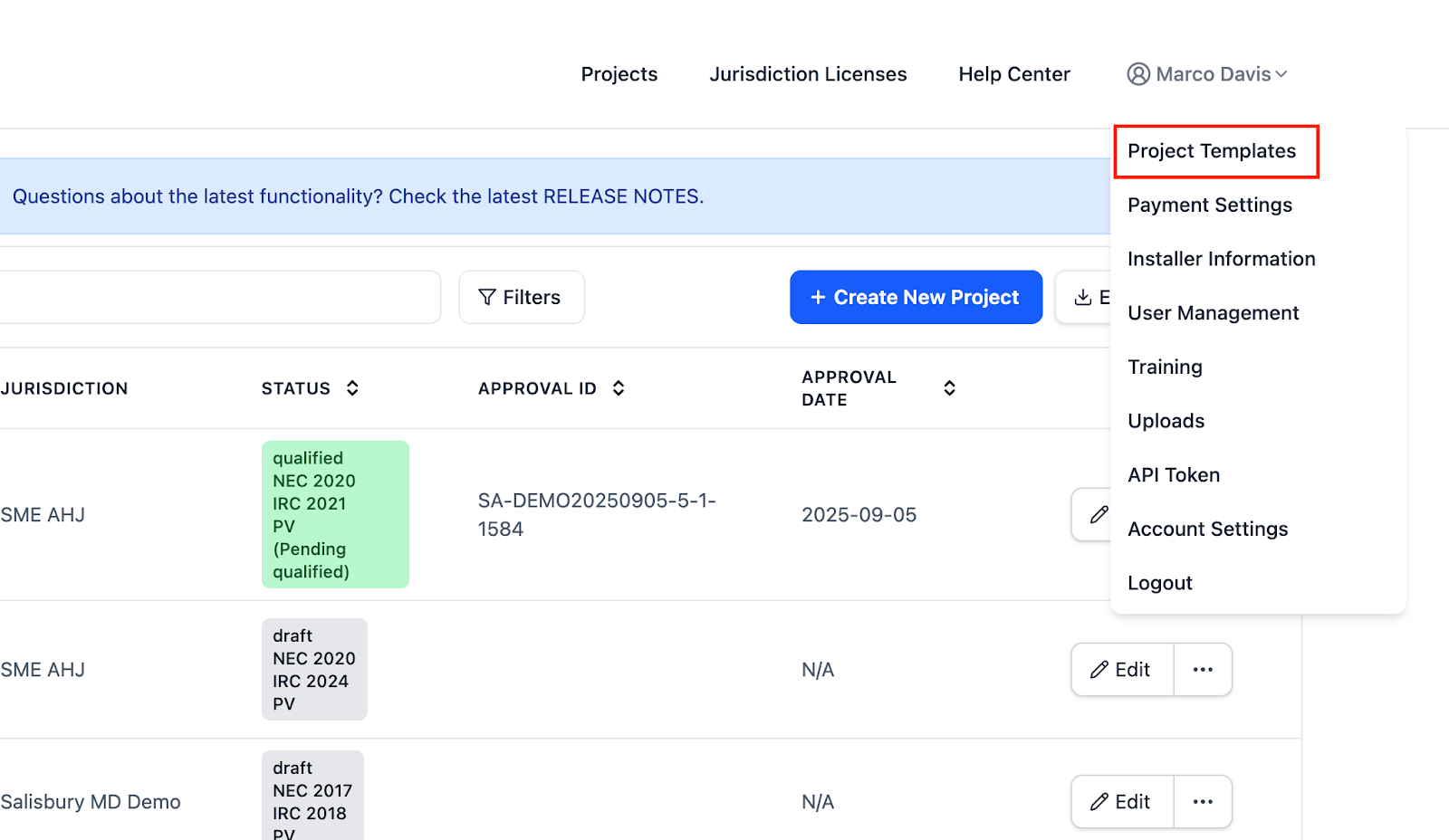
Step 1: Go to the Project Templates Page
- Open the Account dropdown menu in the top-right corner of your dashboard.
- Select Project Templates.
Step 2: Create a New Template
-
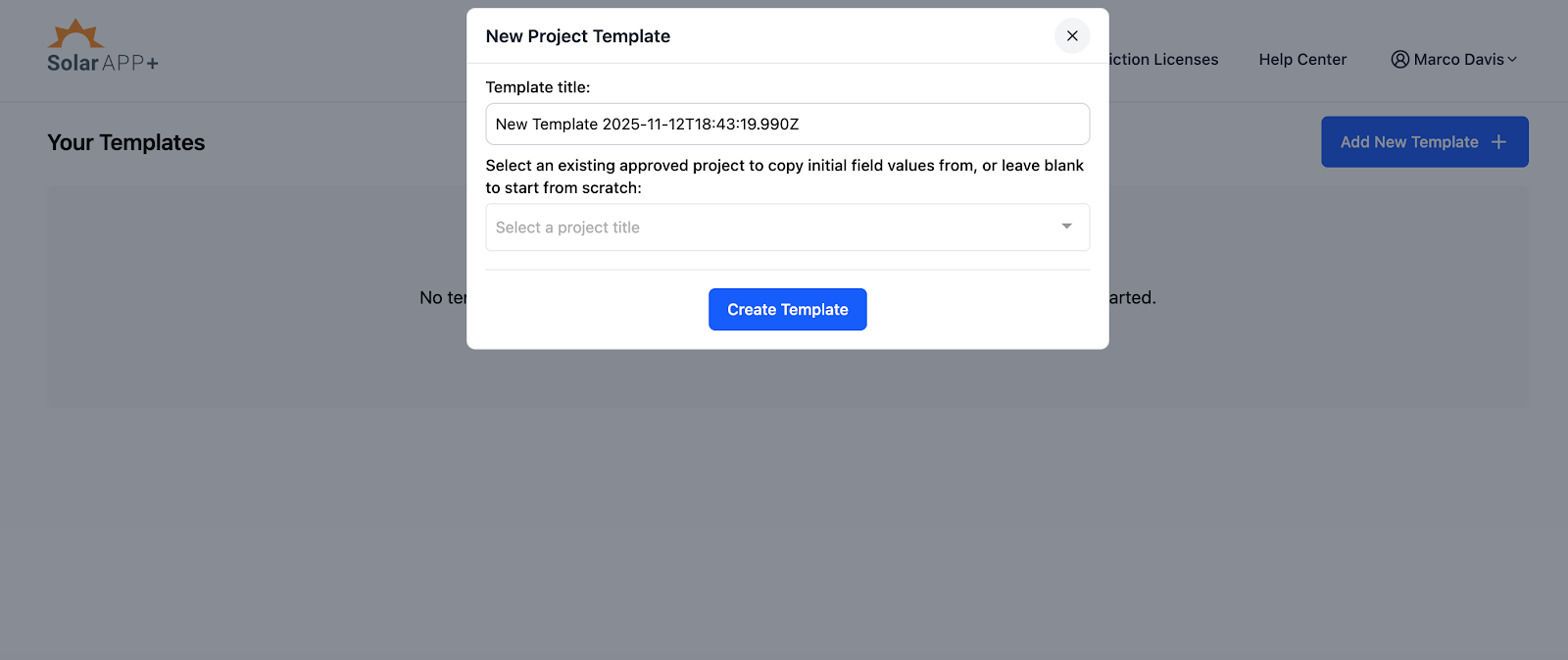
Click Add New Template.
Choose how you’d like to start:
- From an approved permit: search by title, AHJ, or completion date.
- From scratch: start with a blank template.
Step 3: Add Information to Your Template
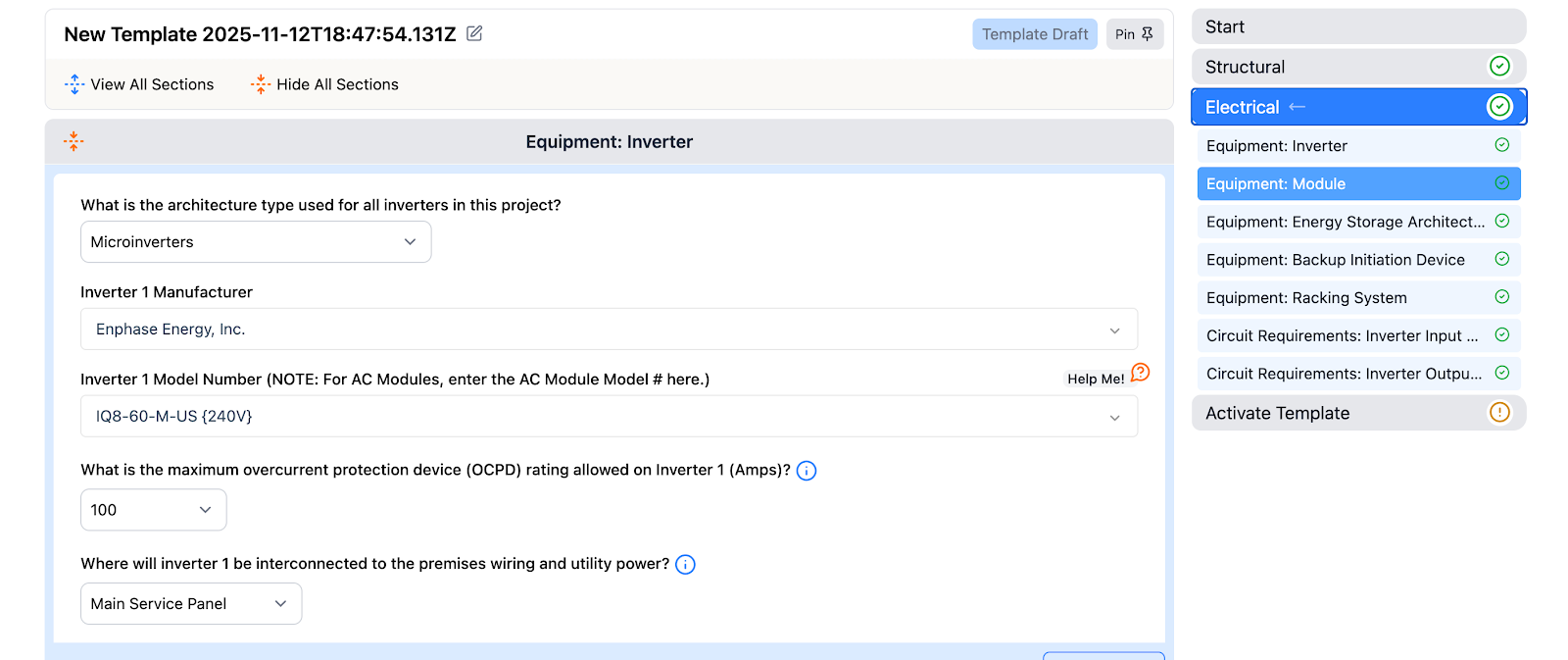
- Review the intro page for details on which fields can be templated.
- Enter as much or as little information as needed in the eligible fields.
- Rename your template for easier identification.
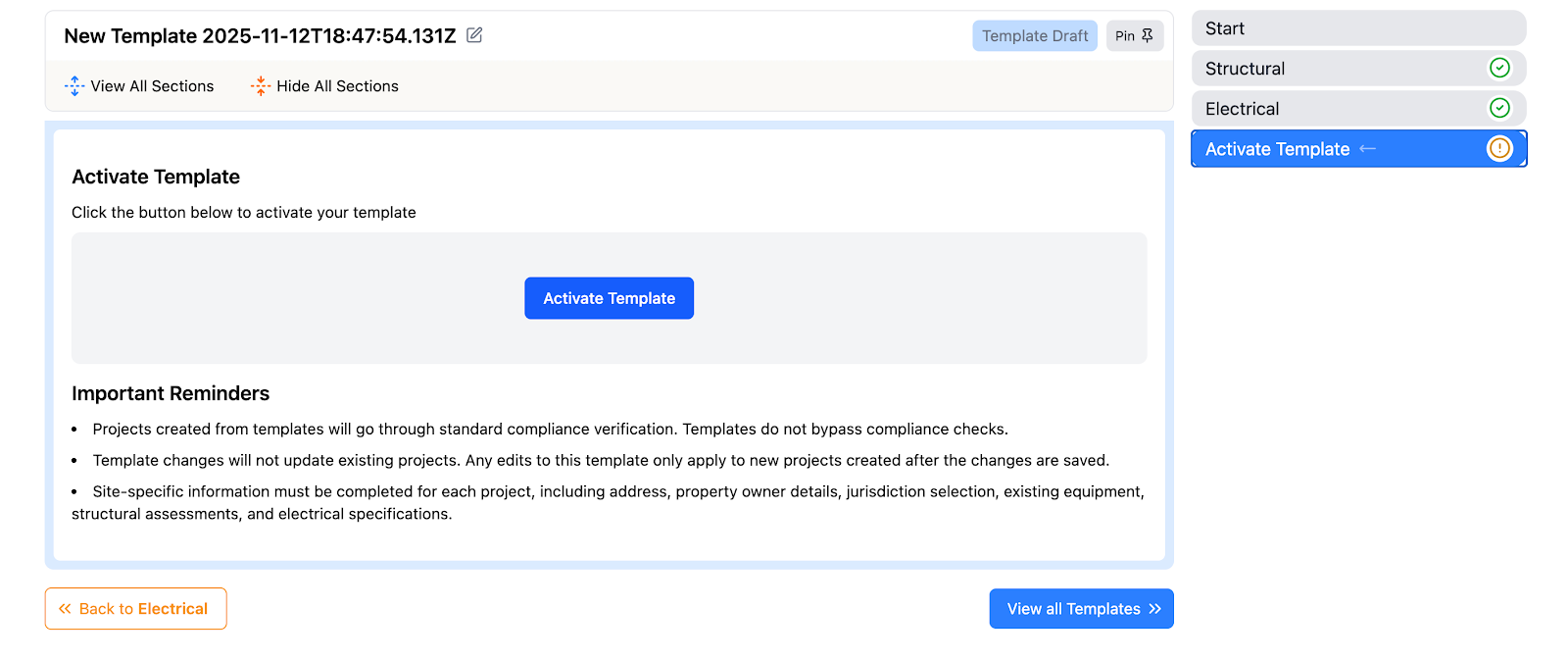
- Click Activate Template to save it.
Once activated, it will appear in your Project Templates list and be available during new project creation.
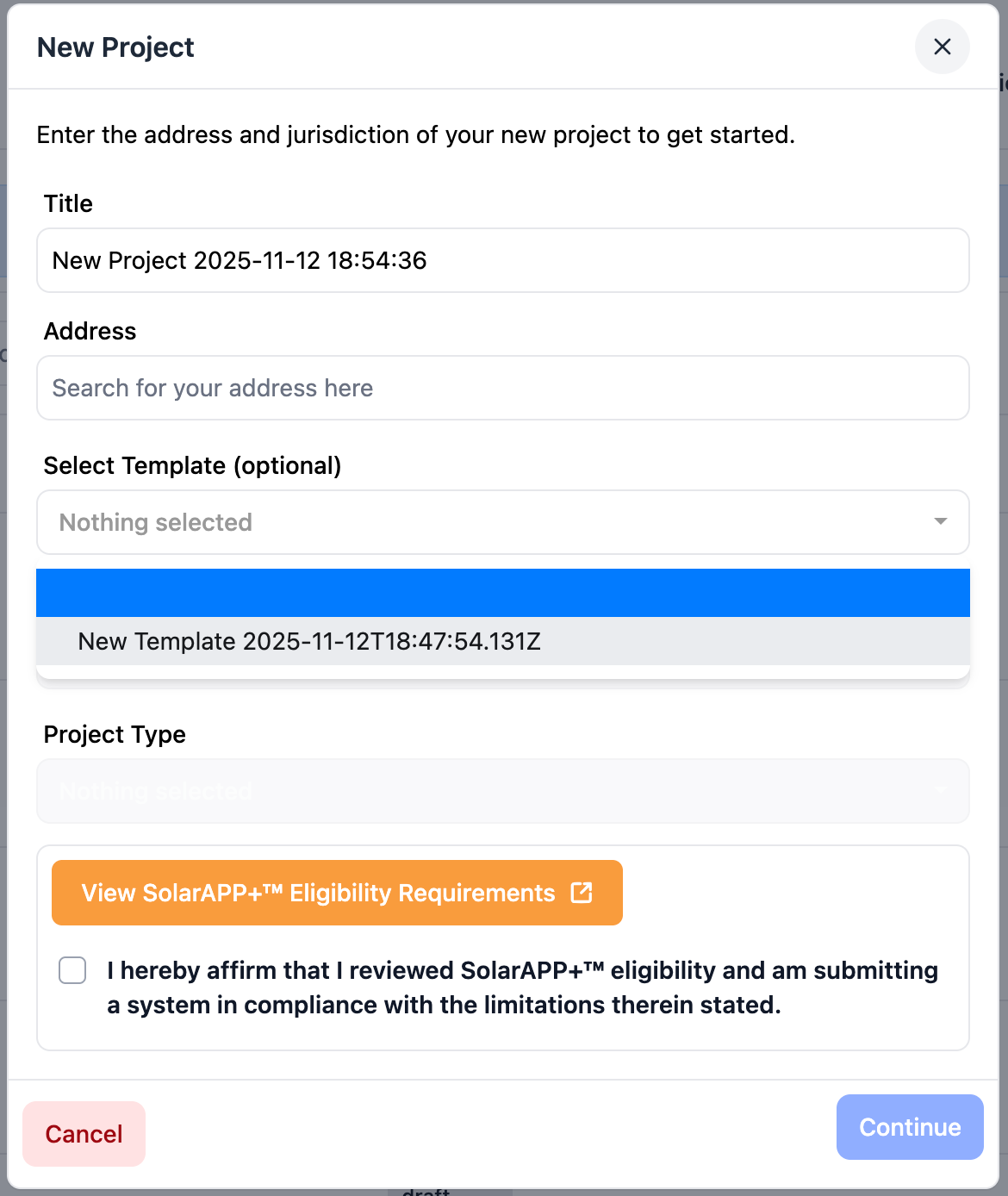
Step 4: Use a Template to Create a New Project
- Go to your Projects page and click Create New Project.
- Select the desired template.
- SolarAPP+ will automatically fill in all saved responses from the template.
- Complete any remaining fields and submit your project.
Tip: If you receive compliance errors related to template fields, review and update the template before using it again.
Step 5: Edit, Deactivate, or Delete Templates
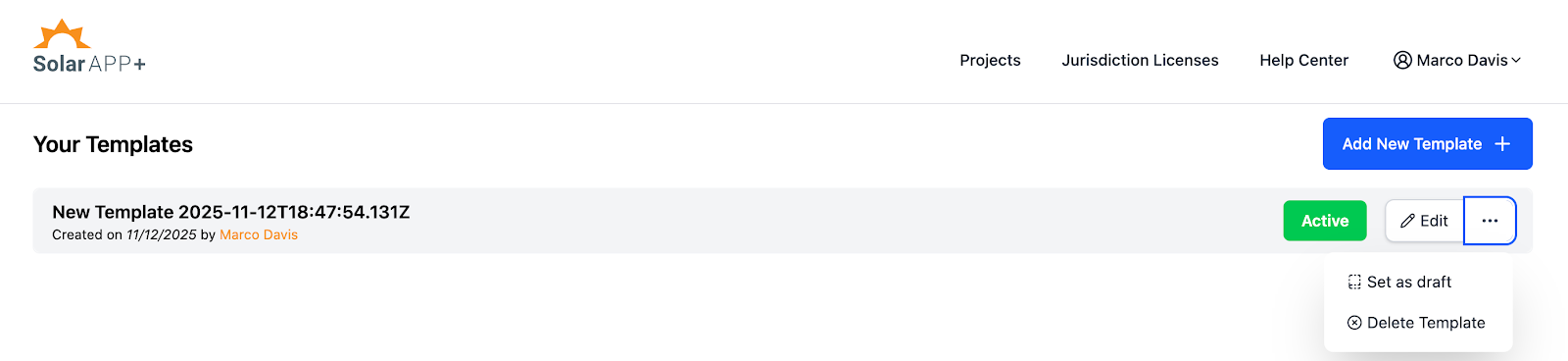
- Go to the Project Templates page.
- Click the ⋮ (more) icon next to your template.
- Choose Edit, Deactivate, or Delete.
Permissions: Only the Team Manager and the template creator can edit or delete templates.
Other team members can view and use templates but cannot modify or remove them.
Maintaining Templates
Building codes and SolarAPP+ validations are periodically updated.
To prevent compliance issues:
- Review templates after SolarAPP+ system or code updates
- Check for changes in local AHJ requirements
- Refresh templates that consistently cause validation errors
Frequently Asked Questions (FAQ)
- Can I use templates for multiple AHJs?
- Yes, as long as the information in the template applies across those jurisdictions. Keep in mind that local AHJ code rules might differ, so review template values before reuse.
- Do templates include uploaded documents or attachments?
- No. File uploads and other project-specific documents must be added individually for each project.
- If I update a template, will existing projects change automatically?
- No. Template updates only apply to projects created after the changes are saved.
- Why do I see compliance errors when creating a project from a template?
- Templates do not undergo compliance checks when created. Errors during project creation indicate that one or more saved values are no longer code-compliant. Edit the template and re-save it to resolve the issue.
- Can multiple team members share and edit the same templates?
- All team members can view and use shared templates, but only the team manager or the template creator can edit or delete them
- What happens if I deactivate a template?
- Deactivated templates are hidden from the project creation flow but remain stored in your account. You can reactivate them later if needed.
Need Help?
If you run into issues or want help optimizing your templates, contact us at
👉 support@gosolarapp.org