
Assigning a Company Domain
Team Managers can now assign a company domain to your organization’s SolarAPP+ profile. This feature automatically links any user signing up with this domain to your company, so you no longer need to invite each new addition manually.
Requirements
- You must be a Team Manager.
- The domain must match an email already in your organization.
- That user’s email must be verified.
Steps to Assign a Domain
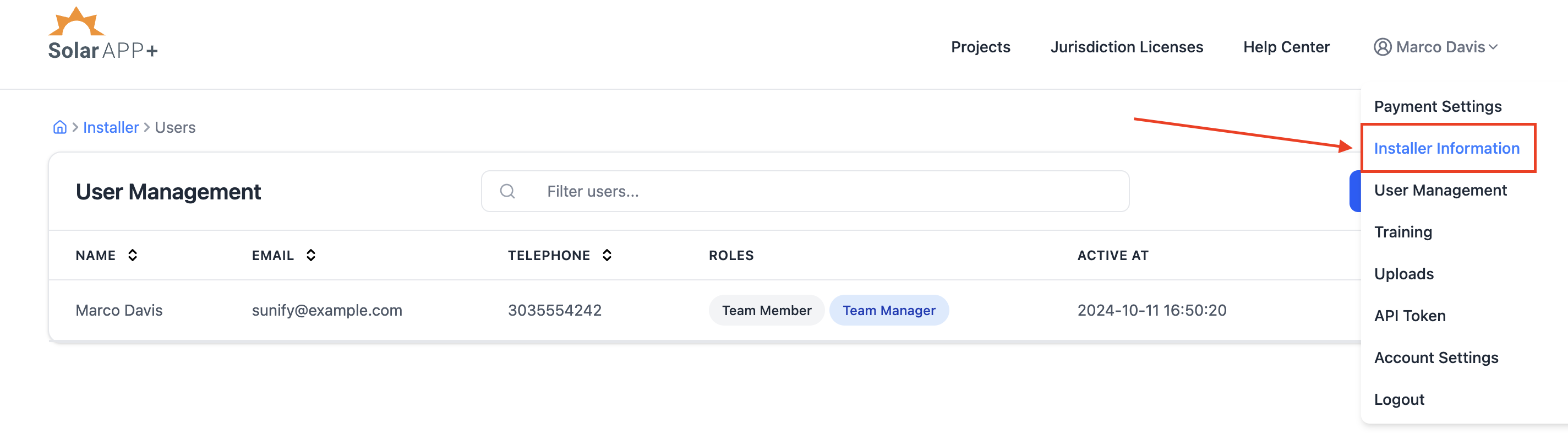
- When logged into SolarAPP+, select "Installer Information" from your account drop-down.
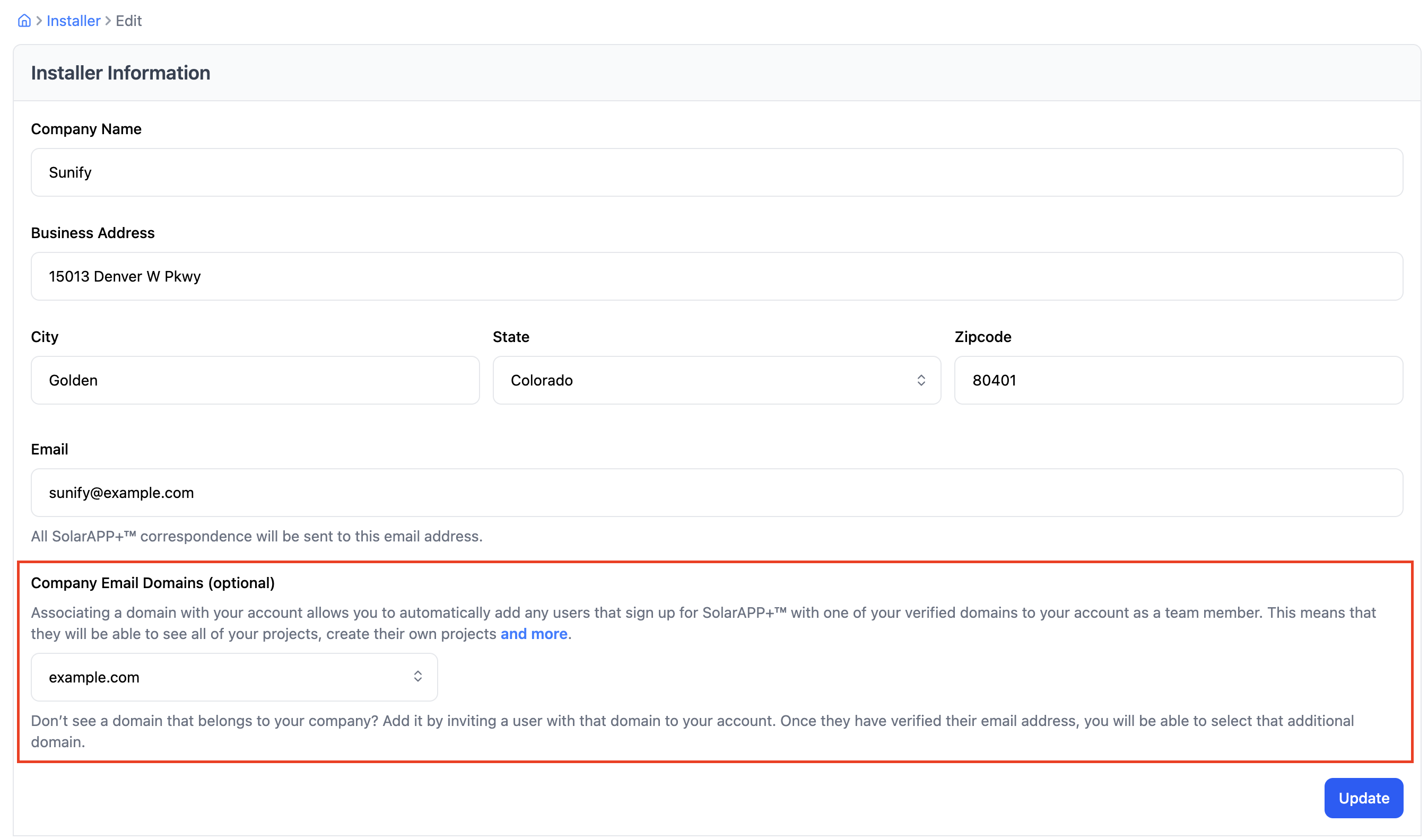
- Identify the 'Company Email Domains' section at the bottom of the page
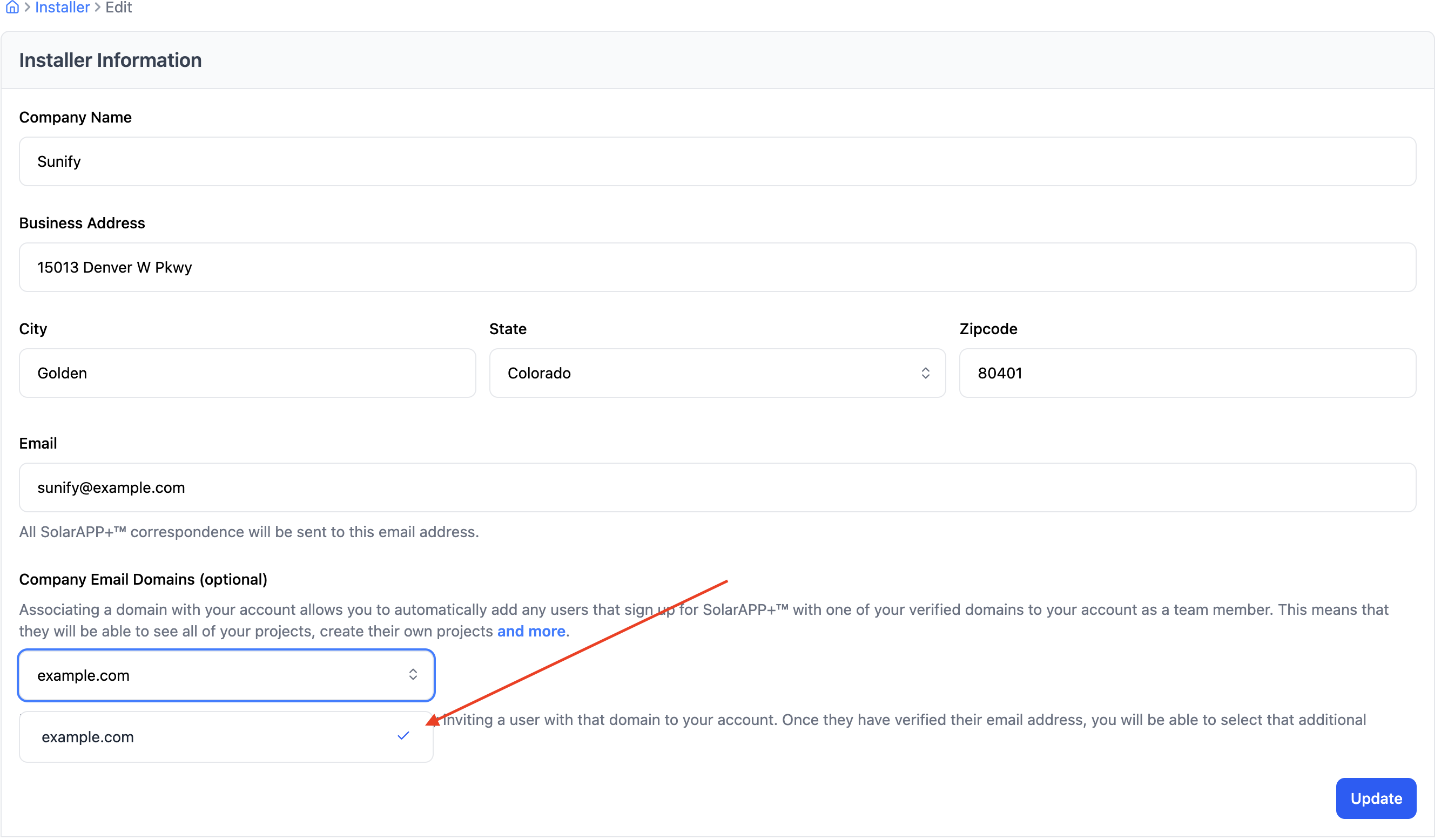
- Select the desired domain from the dropdown, once it is selected, a blue checkmark will appear beside the domain.
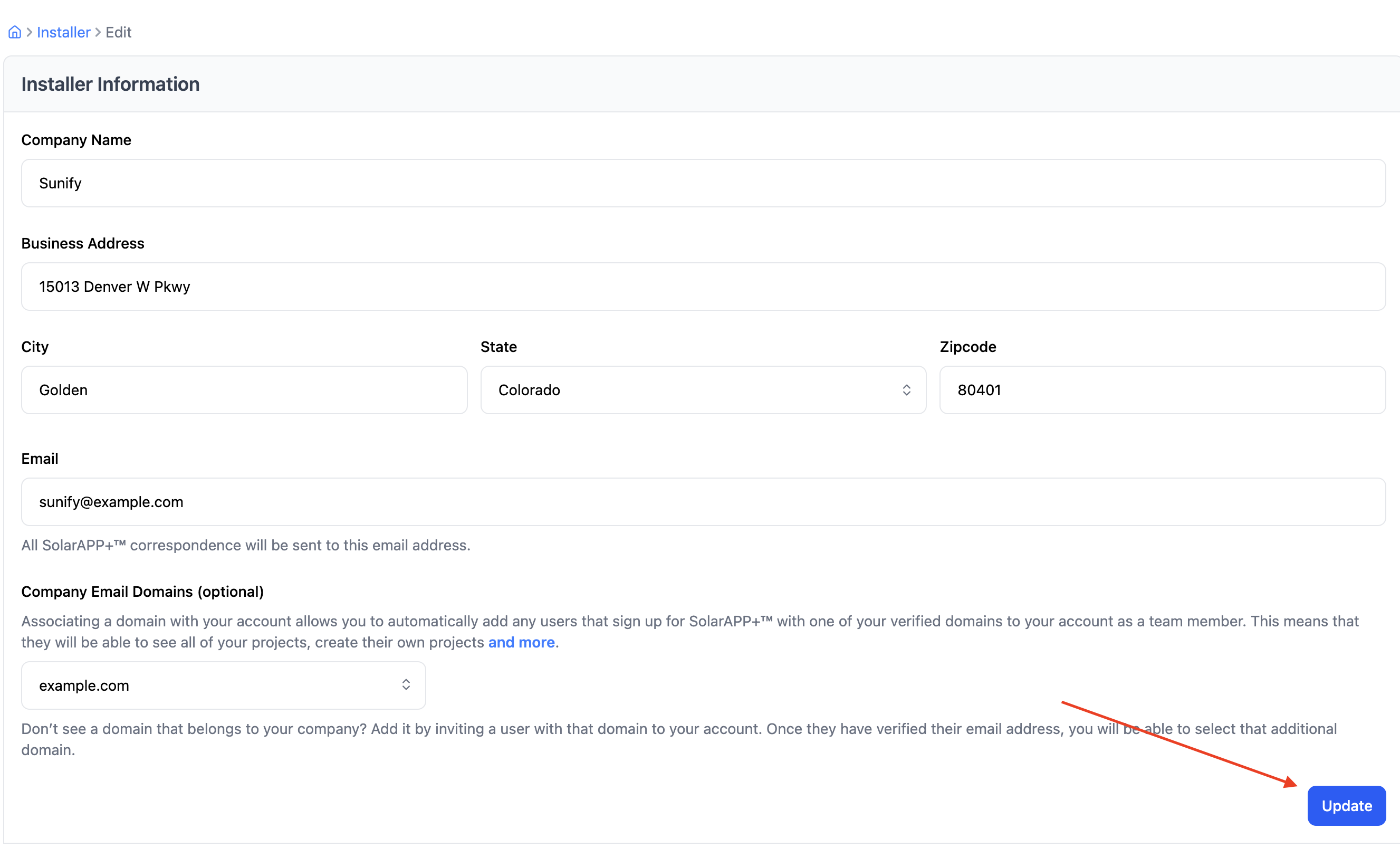
- Click 'Update' to save your changes
FAQs
- What if I don’t see my domain?
- Make sure someone with that email has already been added to your company and has verified their email.
- Can I assign multiple domains?
- Yes, you can add more than one domain if your company uses multiple.
- Can I remove or change a domain later?
- Yes. Team Managers can return to the Company Email Domains section, uncheck or update the assigned domain(s), and click Update.
- Will existing users be reassigned automatically?
- No. Assigning a domain only affects new users who sign up with that domain. Existing users remain unchanged.
- Do subdomains count (e.g., team.company.com)?
- No. Only the primary domain (e.g., company.com) is eligible to assign.
- How many domains can we add?
- There’s no limit — as long as each domain is tied to a verified user email in your organization.
- What happens if a user signs up with a personal email (e.g., Gmail)?
- They won’t be added automatically. You’ll still need to invite them manually.